Free Printable Monthly Bill Tracker
Keep track of the bills you pay each month, with a due date and an amount for each, and mark them off as you go. The last column can be a tick box or the date you paid. Free to fill in online and print. No account needed.
About the Monthly Bill Tracker
This monthly bill tracker template has 25 lines on one page. Each line takes the name of the bill, its due date and the amount, with a last column for marking it paid.
A Tick Box or a Paid-On Date
The Paid toggle above the sheet changes the last column. Checkbox puts a box beside each bill for you to tick once you have paid it, which is quick to fill in and quick to read. Date swaps the box for a PAID ON column, where you can log the day payment was made for the bill.
Choose the date if you want a record to check against your bank statement, or if you may need to show the day you paid. The page saves both your ticks and your dates locally in your browser, so you can switch between the two at any time.
Setting Up Your Bill List
- Write down each regular monthly bill: rent or mortgage, utilities, phone, internet, insurance, loan and card payments, subscriptions.
- List them in due-date order, earliest first. The next bill to pay is then the first line without a tick.
- Write the amount for each. For a bill that changes, such as electricity, use last month’s figure and correct it once the new bill arrives.
- Mark each bill as you pay it. For a direct debit, mark it after you have seen the payment on your statement.
Your list stays on the page between visits. At the start of a new month, untick the boxes and update the amounts that changed.
The Total and Your Budget
As you type amounts, the TOTAL at the foot of the sheet adds them up, paid or not. This saves you having to calculate the total combined value of your monthly bills by hand. If you would prefer to calculate the total manually, simply toggle 'Auto-totals' to off directly above the template.
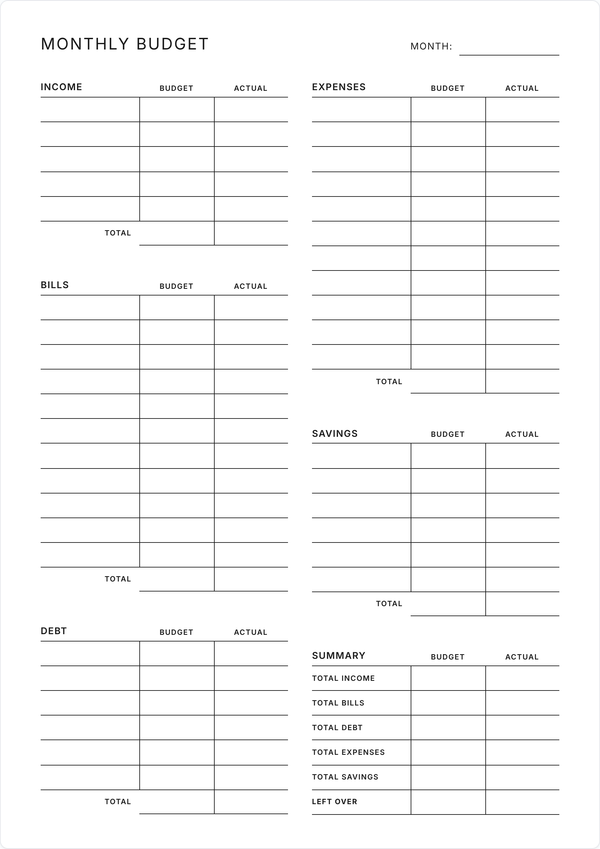
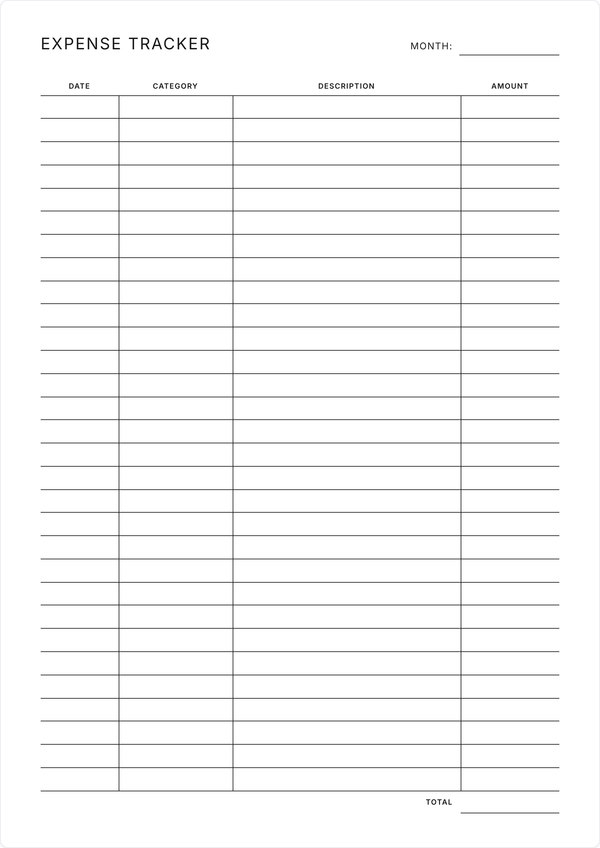
That total is what the bills section of a budget should come to. Plan the rest of the month around it on the monthly budget template, and log day-to-day spending on the expense tracker template.
Print the Tracker for Free
Once you have completed your bill tracker, you can print it or save it as a PDF for free with your edits applied. If you would prefer to complete it by hand, go ahead and print a blank copy.
Features
Tick Box or Paid-On Date
Mark bills paid with a tick, or switch the last column to a date and record the day each payment went out.
Due Dates Down One Column
Each of the 25 lines has its own due date. Read down the column to see what to pay this week.
A Total for the Month
The sheet adds up the amounts as you type. Turn Auto totals off if you would rather add them up by hand.
Reuse It Each Month
Your list of bills stays in your browser. Next month, untick the boxes and update the amounts that changed.
Paper or PDF
Print it for the fridge or the filing box, on A4 or Letter. Save as PDF keeps a copy of each month for your records.
No Account Needed
Your bill list saves in this browser, on this device. We store none of it.
Frequently Asked Questions
What is a monthly bill tracker template?
It is a one-page list of your regular bills, with the due date and amount for each and a place to mark it paid. You fill it in once, then work down it through the month as payments go out.
How do I keep track of my monthly bills?
List each bill with its due date and amount, in the order they fall due. Check the sheet once a week, pay the bills coming up, and mark them off. At the end of the month, a line without a tick or a date is a bill to chase.
What bills should I put on the list?
Start with housing, utilities, phone and internet, insurance, and loan or credit card payments. Then add subscriptions and memberships, which are easy to forget because they renew without a reminder.
Should I use the tick box or the paid-on date?
Use the tick box for a quick view of the bills you have paid. Use the date if you want proof of the day a payment went out, for example to match it against a statement or to settle a late-fee query. You can switch at any point and keep your entries in both.
Does the total include bills I have already paid?
It does. The TOTAL counts each amount on the sheet, ticked or not, so it shows the cost of the whole month of bills. To see the amount left to pay, subtract the bills you have marked paid.
Can I add up the total by hand?
Switch Auto totals to Off above the sheet. The TOTAL cell then stays empty, on screen and in print, until you write a figure in it.
What if I have more than 25 bills?
Print a second sheet, or group small payments on one line, such as “streaming subscriptions” with their combined amount.
Can I reuse the same list each month?
Your entries stay in your browser between visits. At the start of a new month, save a PDF of the old one if you want a record, then untick the boxes, clear the dates and correct the amounts that changed.
What is the difference between a bill tracker and a budget?
A bill tracker covers one part of your money: the payments you owe and their due dates. A budget covers the whole month, including income, everyday spending and savings. The bills you list here belong in the BILLS section of the monthly budget template.
Is my bill information private?
The page saves your entries in your own browser, and you need no account. Save as PDF sends the sheet to our server to make the file, and the server keeps no copy.
Is this monthly bill tracker free to print?
Yes. Filling it in, printing it and saving it as a PDF all cost nothing, and you can print a fresh copy each month. It fits one page of A4 or US Letter.